Friday, April 7, 2017

Retouching Assignment


In this assignment you first want to find an image of an old person. Next open that image in photoshop. From there you want to do whatever you can to make this person look younger. Your goal is to make the person look younger. Like get rid of the wrinkles, etc. When done flatten image, save as jpeg, and post to blog.

Thursday, April 6, 2017

Magazine Cover Assignment


In this assignment you do the exact same thing you did with the movie poster assignment. But the only thing thats different is that you use a magazine cover. First you want to find a magazine cover you want to use. Next take a picture of yourself in the pose of the magazine cover. Then cut your face and place it on the cover. From there you wan to enhance the image and blend it. When done flatten image, save as jpeg, and post to blog.

Tuesday, April 4, 2017

Movie Poster Assignment


In this assignment you first want to find a movie poster image. Next take a picture of yourself like the way the person in the picture is. Then cut your image out and place it on the poster where you want it.       From there you want enhance your image by adjusting color and lighting. Also you can use the eraser tool on a low opacity to blend. Your goal is to seem that your face is actually on the poster. When done flatten image, save as jpeg, and post to blog.

Monday, April 3, 2017

Photo Collage With Text Features Assignment


In this assignment your basically do what it says. First you want to take a bunch of pictures. Next you want to arrange them in a collage. Then when your done arranging them you want to begin adding text features on the pictures. When finished flatten image, save as jpeg, and post to blog.

Tuesday, March 21, 2017

Classical 'Painting" Portrait Assignment


In this assignment you first want to find a picture. Mostly one that you've taken. Next you want to open it into photoshop. Then from there you want to open filter gallery. Next you want to select the 'Artistic" option. Then begin playing around with the different selections. After you found a good one click okay. You then want to use different options like the masking tool to make your picture look more like a painting. My finished product is the top picture, and the bottom picture is the original picture. When down flatten image, save as jpeg, and post to blog.

Friday, March 17, 2017

30 Day Challenge Pictures Part 2 Assignment

Day 1
Favorite food
Day 2
Smile


Day 3
Happiness


Day 4
Leaves


Day 5
Morning Sky (Taken at 7pm)


Day 6
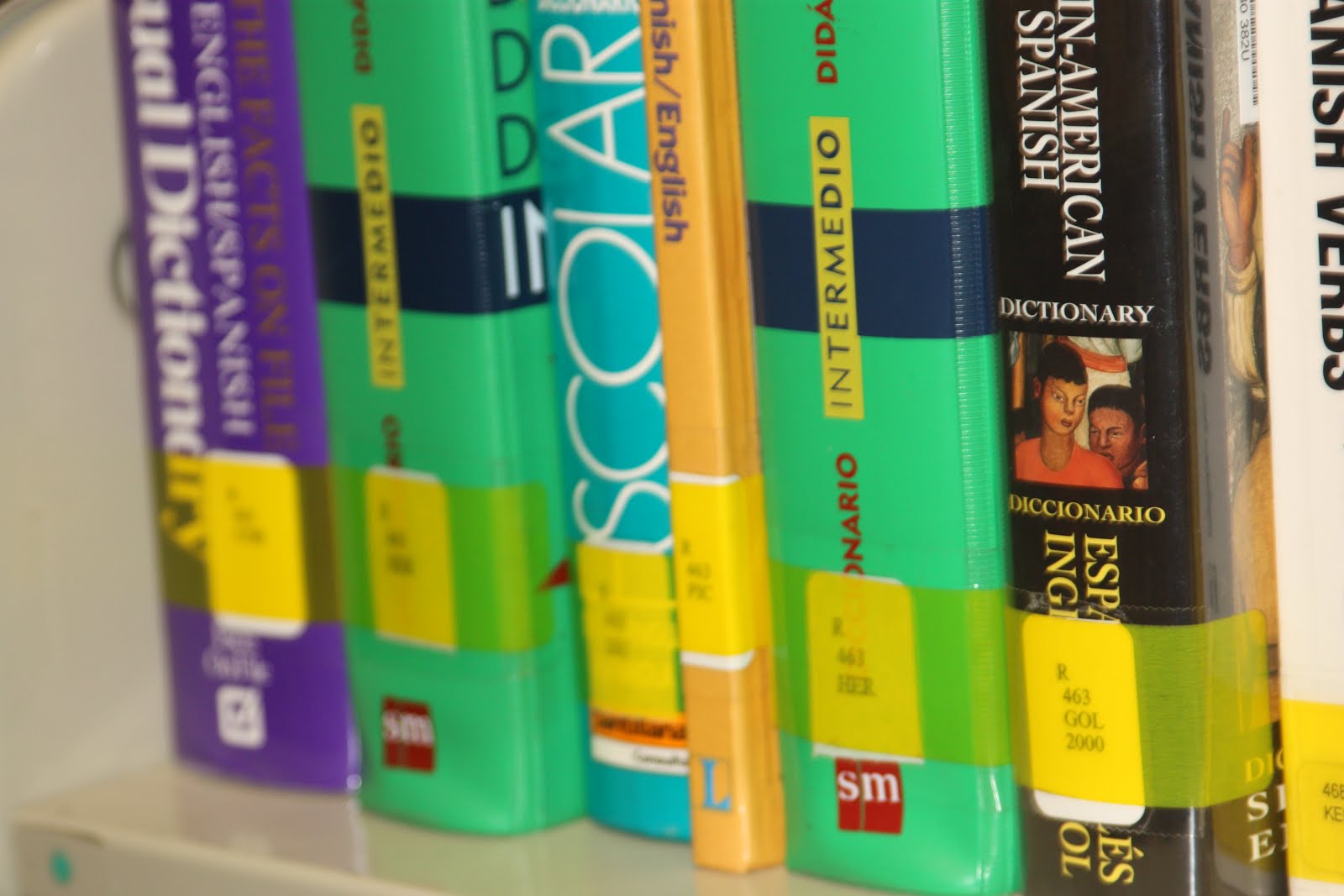
Books


Day 7
Something Funny


Day 8
Favorite Color


Day 9
Inspiring Person


Day 10
Nature


Day 11
Something Old


Day 12
Hair


Day 13
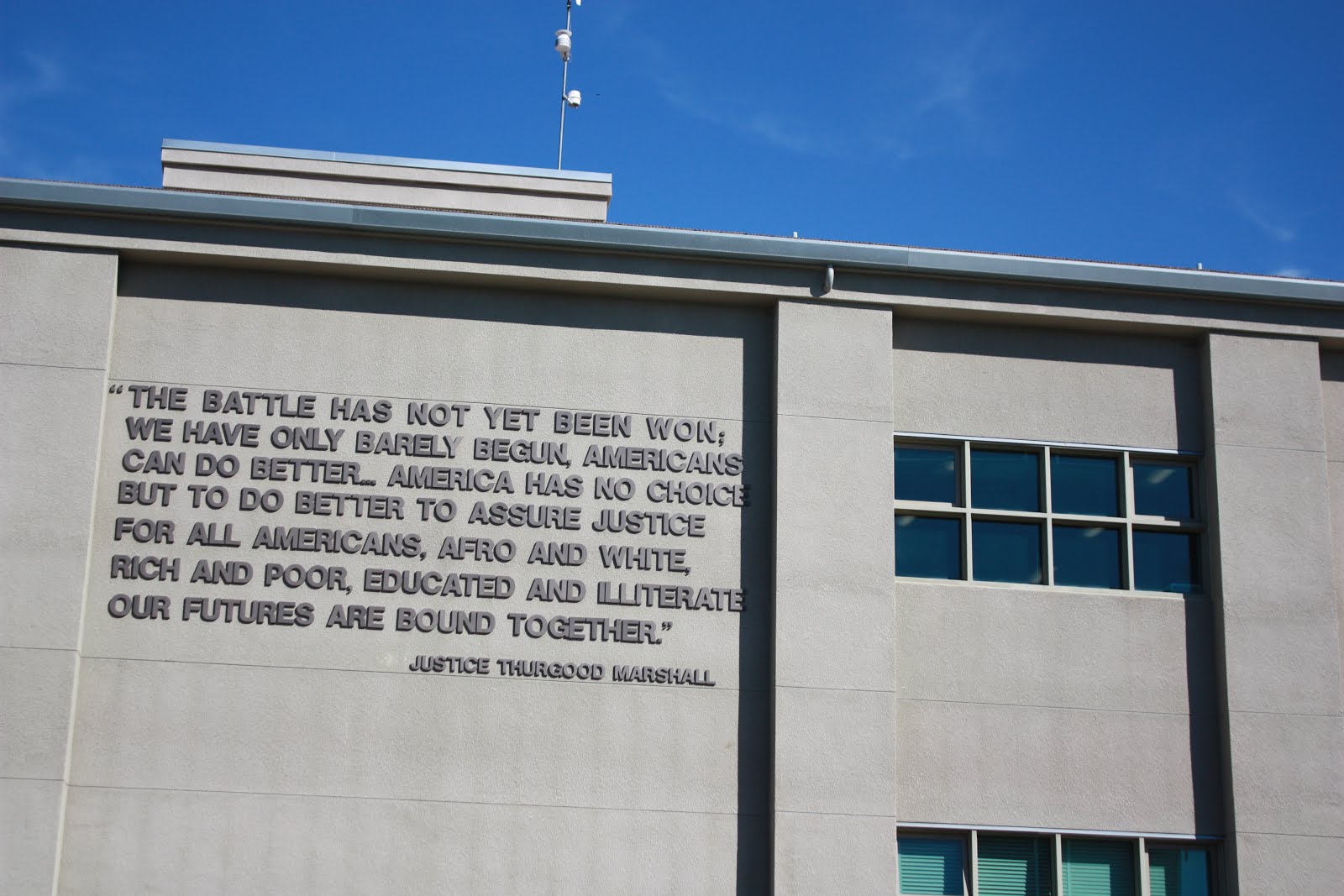
Written Words


Day 14
Movement


Day 15
Leading Lines


Day 16
Symmetry and Patterns


Day 17
Framing


Day 18
Depth of Field


Day 19
Rule of Thirds


Day 20
Best Friend


Day 21
Where You Sleep


Day 22
In Your Closet


Day 23
Gratitude


Day 24
Something New


Day 25
Animals


Day 26
Worm's Eye View of Trees


Day 27
Artwork


Day 28
Daily Routine


Day 29
Nighttime


Day 30
Light


Thursday, March 16, 2017

Portrait Montage Using Different Backgrounds Assignment


In this assignment you first want to find plenty of backgrounds. Then with those backgrounds place them in photoshop. From there you want to use different filters, etc. Next you want to arrange all your backgrounds when finished editing them. Then you want to find a large portrait of yourself. Then place it on the assorted background wall. Next flatten image, save as jpeg, and post to blog.